Bumper Tops
A spinning-top battle game: flick the cord to launch, then steer, dash and guard to knock the other tops out of the dish.
▶ Play Bumper Tops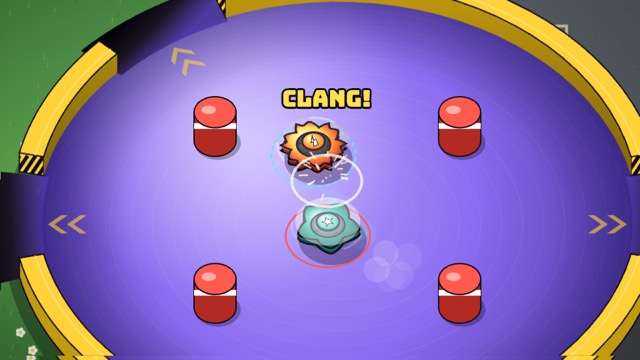
- No adverts
- No chat
- No email needed to play
- Free to play
- AGES
- 5 to 10
- PLAYERS
- 1 player, or 2 sharing one tablet, phone or keyboard
- CONTROLS
- Touch or mouse: pull the cord out with a quick flick to launch, drag to steer, tap Dash and Super, hold Guard. Keyboard: Space pulls the cord, arrows or WASD steer, Space dashes, Shift guards, E for Super.
- BEST ON
- A tablet, especially for two players facing each other across it. Phones and computers with a keyboard work too.
- HOW LONG
- Most battles take a minute or two: first to three points, over a few short rounds. After 38 seconds in a round the tops tire faster, so none drags on.
What is it?
Bumper Tops is a spinning-top battle game. Each round starts with a launch: your child pulls the cord on screen, and a quick, sharp flick gives the top more spin. Then the tops crash about in a dish, and the aim is to knock rivals out through the gaps in the wall, or simply keep spinning longest.
Auntie Spindle teaches the moves in six short lessons. Then come a playground, a funfair, an ice rink and a clock tower, each with new tricks: sand that saps spin, spinning teacups, slippery ice, turning walls. Each of these places ends with a boss battle against Count Topple or one of his crew.
Between battles, children build their own top in the workshop, swapping the ring, weight, tip, paint and cap badge, and see every change in the dish. Bash beats Spin, Spin beats Guard and Guard beats Bash, and the card before a battle often suggests a good match.
What’s in it
- 27 battles in five places, including four boss battles
- Three difficulty levels: Easy (the default), Normal and Tricky
- Two-player battles on one tablet or phone, each player's controls facing them, or on one keyboard
- Build your own top: swap the ring, weight, tip, paint and cap badge
- Today's Spin: one new battle each day, with cap badges to win and no streaks
How to play
- Press Let's spin and follow Auntie Spindle's first lesson.
- When the announcer says Whizz, pull the yellow handle out with a quick flick, or press Space.
- Steer with the stick or arrow keys, and press Dash to charge at a rival.
- Hold Guard just before a rival's charge lands, so it bounces off.
- Knock a top out for 2 points or outspin it for 1. First to 3 wins.
What children practise
- Timing: holding Guard just before a charge lands, and flicking the cord at the right speed
- Thinking ahead: picking a top that suits the rival
- Steering with a light touch, especially on slippery ice
For grown-ups
- Nobody gets hurt: tops get knocked out, topple over and see stars. They never break apart.
- Easy is the default. After losses in a row the game quietly gets gentler, until the next win.
- Battle instructions and story lines are read aloud. Voice, sound and music each have their own switch.
- Saves in this browser. Starting over needs a long press, and can be undone before the next win.
Across Kid Cartridge: no adverts, no chat, no email needed to play, free to play. Guests play without signing up. About Kid Cartridge. Privacy.
Questions grown-ups ask
Is it too hard for a five-year-old?
It starts with six short lessons against gentle practice tops, and Easy is the default. Later battles may take a few tries, and the game quietly gives extra help after losses.
Can two children play?
Yes. Once the first lesson is won, a Free Spin button appears on the title screen: pick A friend for a two-player battle. On a tablet or phone laid flat, player 2's controls face the other way. On a keyboard, one player uses WASD and the other the arrow keys.
Does it get harder for older children?
Yes. Normal and Tricky make rivals tougher, and later places ask for more thinking: choosing the right top, timing a guard and using each dish's tricks.
If they like Bumper Tops
Grown-ups: get it on the tablet
Send Bumper Tops to your child’s tablet
On the tablet, open kidcartridge.com/spin-clash/.
Put it on the Home Screen
It then opens full screen, like an app. On iPhone and iPad, Safari can clear a guest’s saves if they go unplayed for a while, and a Home Screen icon is kept apart from that. The icon starts with its own saves, so add it before the first game if you can.
iPad and iPhone (Safari)
- Open kidcartridge.com in Safari.
- Tap Share . On iPad it’s at the top. On iPhone it’s at the bottom; on newer iPhones, tap ••• first.
- Scroll down and tap Add to Home Screen. On newer iPads and iPhones you may need to tap View More first.
- If you see Open as Web App, leave it on. Tap Add.
- Open the games from the new icon from now on.
Android (Chrome)
- Open kidcartridge.com in Chrome.
- Tap the menu at the top right.
- Tap Add to Home screen. It may say Install app.
- Tap Add or Install.
Chromebook or laptop
- Open kidcartridge.com in Chrome or Edge.
- Look for an install icon at the right-hand end of the address bar, and click it.
- No icon? Bookmark the page instead.
Share this page with another parent
kidcartridge.com/games/bumper-tops/
Free printables, and news
All the games · Games guide · About · For grown-ups · Privacy · Terms