Dino Command
A real-time strategy game made for children. Gather wood and berries, build a dinosaur camp, train an army and knock down Grumbletooth's nest.
▶ Play Dino Command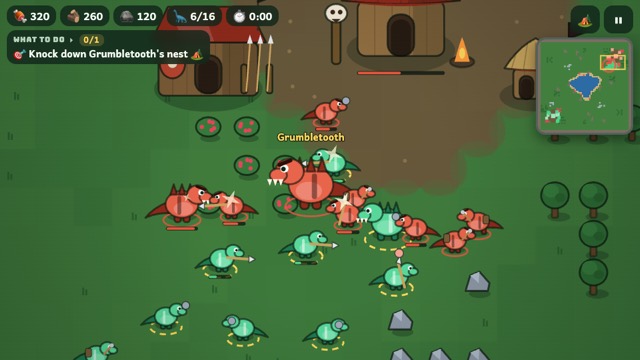
- No adverts
- No chat
- No email needed to play
- Free to play
- AGES
- 7 to 10
- PLAYERS
- 1 player
- CONTROLS
- Touch: tap a dinosaur, then tap where it should go; drag to look around and pinch to zoom; the Pick lots button (or press, hold and drag) picks a group. Mouse and keyboard: click to pick and send, drag a box to pick lots, right-drag, arrow keys or WASD to look around, wheel to zoom, B calls fighters back.
- BEST ON
- A tablet or a computer with a mouse. Phones work too when held sideways, though a bigger screen makes the camp easier to manage.
- HOW LONG
- Learning missions take a few minutes each. Later missions can last 10 minutes or more, and a game in progress is saved as you play.
What is it?
Dino Command is a camp-building strategy game. Gatherers chop trees, pick berries and dig stone, and you spend what they bring home on huts, barracks and towers. Then you train spear dinos, rock throwers and stompers. Each fighter beats one of the others, so a mixed army wins where a crowd of one kind does not.
The campaign has 27 missions across five places, from a sunny valley to a volcano. The first chapter, Learning, has eight short missions that teach one idea each with a pointing hand, and they cannot be lost. Later chapters add scouts, healers, walls and rival camps that gather, build and fight back.
From the second chapter you pick Easy, Normal or Fierce before each mission. Free Play opens after the first chapter: choose the land, the size of the map and how mean Grumbletooth is, and get a fresh map every time.
What’s in it
- 27 missions in five chapters, each with three stars to earn.
- Eight learning missions with a spoken pointing hand that shows every step.
- Easy, Normal and Fierce settings, chosen before each mission from chapter two.
- New things arrive chapter by chapter: farms, stompers, scouts, healers, rams, walls and gates.
- Free Play: a fresh map every game; campaign progress opens more lands and a second rival tribe.
How to play
- Press Play and start with the Learning chapter; the pointing hand shows each step.
- Tap a gatherer, then tap a tree, berry bush or rock to start collecting.
- Pick a gatherer and tap Build to put up huts, a barracks and more.
- Train fighters at the barracks, then tap Fighters and tap a baddie to attack.
- Tap Come back if your fighters chase too far, and follow the goals in What to do.
What children practise
- Planning ahead, such as saving up wood and food for the next building
- Working out which fighter beats which, and mixing an army to match
- Keeping several jobs going at once
For grown-ups
- Cartoon battles with bonk stars and no blood; beaten dinosaurs vanish in a little puff.
- Briefing introductions, cards about new things and pointing-hand steps are read aloud; goals need some reading.
- It forgives mistakes: losing your nest gives you 90 seconds to build a new one.
- Two later missions have a time limit shown on screen, with more time on Easy.
Across Kid Cartridge: no adverts, no chat, no email needed to play, free to play. Guests play without signing up. About Kid Cartridge. Privacy.
Questions grown-ups ask
Is it too hard for a six-year-old?
The Learning chapter is gentle: it teaches one thing at a time with a spoken pointing hand and cannot be lost. Later chapters ask for real planning, which suits children of about seven and up. Easy is picked the first time and softens every battle.
Can it be played with a mouse?
Yes. Click a dinosaur, then click where it should go; drag a box to pick lots, use the arrow keys or WASD to look around and the wheel to zoom. On a touchscreen, tap and drag instead.
Can my child stop in the middle of a battle?
Yes. A game in progress saves every 15 seconds and when the page is closed, and Keep going on the title screen carries on from there.
If they like Dino Command
Grown-ups: get it on the tablet
Send Dino Command to your child’s tablet
On the tablet, open kidcartridge.com/dino-command/.
Put it on the Home Screen
It then opens full screen, like an app. On iPhone and iPad, Safari can clear a guest’s saves if they go unplayed for a while, and a Home Screen icon is kept apart from that. The icon starts with its own saves, so add it before the first game if you can.
iPad and iPhone (Safari)
- Open kidcartridge.com in Safari.
- Tap Share . On iPad it’s at the top. On iPhone it’s at the bottom; on newer iPhones, tap ••• first.
- Scroll down and tap Add to Home Screen. On newer iPads and iPhones you may need to tap View More first.
- If you see Open as Web App, leave it on. Tap Add.
- Open the games from the new icon from now on.
Android (Chrome)
- Open kidcartridge.com in Chrome.
- Tap the menu at the top right.
- Tap Add to Home screen. It may say Install app.
- Tap Add or Install.
Chromebook or laptop
- Open kidcartridge.com in Chrome or Edge.
- Look for an install icon at the right-hand end of the address bar, and click it.
- No icon? Bookmark the page instead.
Share this page with another parent
kidcartridge.com/games/dino-command/
Free printables, and news
All the games · Games guide · About · For grown-ups · Privacy · Terms