Penguin Parade
The penguin chicks march straight ahead and never stop. Give them jobs, like dig, bridge and climb, to get the parade home.
▶ Play Penguin Parade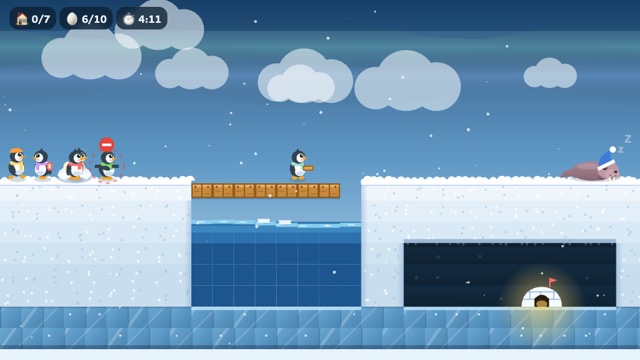
- No adverts
- No chat
- No email needed to play
- Free to play
- AGES
- 6 to 10
- PLAYERS
- 1 player
- CONTROLS
- Touch: tap a job, then tap a chick; drag to look around and pinch to zoom. Mouse: click a job, then a chick; the wheel zooms. Keyboard: 1-6 pick a job, Z rewinds, Space pauses.
- BEST ON
- A tablet, or a computer with a mouse. It works on phones too, with a camera that follows the parade and a mini-map.
- HOW LONG
- Early levels take a minute or two; the biggest later levels allow up to 14 minutes
What is it?
Penguin Parade is a marching puzzle game. Chicks hatch at the huddle and walk straight ahead; you cannot steer them. Instead you tap a chick to give it a job: dig down, bash sideways, lay a bridge, stop and turn the others round, float down by parachute or climb a wall.
There are 40 levels across five chapters. The first chapter brings in one job at a time, with badges on the ice showing where each job goes. Each later chapter adds a twist, such as thin ice, bouncy snowballs or a walrus on patrol, and the levels grow taller.
Mistakes are easy to undo. Picking a job slows the action down, a rewind button jumps back 10 seconds as often as needed, and a Show me how button gives hints. There is also a level maker for designing your own.
What’s in it
- 40 levels in five chapters, from the Ice Shelf to The Great Glacier
- Six jobs to hand out: dig, bash, bridge, stop, parachute and climb
- Rewind 10 seconds whenever you like, and hints on every level that uses jobs
- A level maker: paint your own ice, test it and share it as a text code
- Up to three stars a level; a new chapter opens once the last one is finished
How to play
- Press Start the parade, pick an island on the ice map, then a level.
- Pick a job from the tray, then tap a chick to give it that job.
- Get enough chicks into the burrow before the clock runs out.
- Made a mistake? Press rewind to jump back 10 seconds and try again.
- Stuck? Press Show me how and follow the badges one at a time.
What children practise
- Planning a few moves ahead and getting the order right
- Timing: giving the right chick a job at the right moment
- Designing and testing their own puzzles in the level maker
For grown-ups
- Losing a chick is gentle: a splash or an ouch, then a sad chick floats away.
- Level names, briefs and job names are read aloud. Sound, music and voice switch off separately.
- There is no difficulty setting; slow-down, rewind, hints and a hatching-speed button soften mistakes instead.
- Sharing a home-made level means copying a text code and pasting it; there is no public level gallery.
Across Kid Cartridge: no adverts, no chat, no email needed to play, free to play. Guests play without signing up. About Kid Cartridge. Privacy.
Questions grown-ups ask
Is it suitable for a five-year-old?
The first chapter is gentle, with one new job per level, spoken instructions and badges showing where to tap. Later chapters ask for planning several steps ahead, so younger children may like a grown-up alongside.
Can my child make their own levels?
Yes. The level maker lets them paint snow, ice, sea, walruses, thin ice, snowballs and icicles, set the chicks, jobs and clock, then test and save the level.
What happens when it goes wrong?
The game says as soon as there are not enough chicks left to win, and offers to rewind. Rewinding can be used again and again, so a mistimed tap is never the end.
If they like Penguin Parade
Grown-ups: get it on the tablet
Send Penguin Parade to your child’s tablet
On the tablet, open kidcartridge.com/penguin-parade/.
Put it on the Home Screen
It then opens full screen, like an app. On iPhone and iPad, Safari can clear a guest’s saves if they go unplayed for a while, and a Home Screen icon is kept apart from that. The icon starts with its own saves, so add it before the first game if you can.
iPad and iPhone (Safari)
- Open kidcartridge.com in Safari.
- Tap Share . On iPad it’s at the top. On iPhone it’s at the bottom; on newer iPhones, tap ••• first.
- Scroll down and tap Add to Home Screen. On newer iPads and iPhones you may need to tap View More first.
- If you see Open as Web App, leave it on. Tap Add.
- Open the games from the new icon from now on.
Android (Chrome)
- Open kidcartridge.com in Chrome.
- Tap the menu at the top right.
- Tap Add to Home screen. It may say Install app.
- Tap Add or Install.
Chromebook or laptop
- Open kidcartridge.com in Chrome or Edge.
- Look for an install icon at the right-hand end of the address bar, and click it.
- No icon? Bookmark the page instead.
Share this page with another parent
kidcartridge.com/games/penguin-parade/
Free printables, and news
All the games · Games guide · About · For grown-ups · Privacy · Terms