Sky Pop
A 3D flying game where you cannot crash: steer a little plane, fire fireworks and bubbles, and pop a grumpy T. rex's balloons.
▶ Play Sky Pop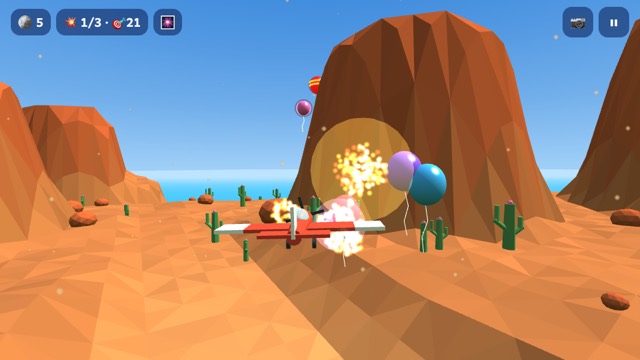
- No adverts
- No chat
- No email needed to play
- Free to play
- AGES
- 6 to 10
- PLAYERS
- 1 player
- CONTROLS
- Touch: a joystick appears under the left thumb (push up to climb), with FIRE, FAST, swap and LOOP buttons on the right; tilt steering is an option on phones and tablets. Keyboard: arrow keys or WASD to fly, Space to fire, Shift to go fast, Q to swap, L to loop, C to change camera, P to pause.
- BEST ON
- A tablet or a computer. It is a full 3D game, so a bigger screen helps, but it works on phones too.
- HOW LONG
- Missions take a few minutes each, ending with a landing that can be skipped. Free Fly has no end.
What is it?
Sky Pop is a 3D flying game. Your child flies a little propeller plane over a sunny island, a red canyon and snowy peaks, firing fireworks, bubbles and confetti at the balloons that Grumbletooth, a grumpy T. rex, has filled the sky with.
There are six missions, each in a different place with its own sky and weather: popping balloons, blasting waves of balloons and paper planes, a race through rings, a night-time firework show, a present drop and a giant blimp to finish. Free Fly lets them potter about with no goal.
It is built to be forgiving. The plane cannot crash: the ground bumps it back up and the edge of the map turns it round. A yellow arrow always points to the next target, and when the mission is done the autopilot brings the plane in to land.
What’s in it
- Six missions in six places, from a sunny island to a stormy volcano.
- Weather that matters: wind pushes the plane about, and rain, snow and mist roll past.
- Four planes to fly, including a helicopter and a jet, plus paint and six things to fire.
- Three stars per mission, 18 in all, open up new planes and extras in the hangar.
- Loop-the-loops, a cockpit camera and a Free Fly mode with no goal.
How to play
- Press Fly and pick the first mission, Balloon Pop.
- Push the joystick up, or press the up arrow, to climb; down dives, and left and right turn.
- Hold FIRE, or Space, to send fireworks at the balloons. Follow the yellow arrow to the next one.
- Hit a red boom balloon to set off a chain of bangs.
- When the mission is done, turn towards the arrow and the plane flies home and lands.
What children practise
- Steering in three dimensions: climbing, diving and turning towards a target
- Allowing for the wind when aiming and when dropping presents onto nests
- Following a goal in order, such as flying through rings one after another
For grown-ups
- The plane cannot crash and nothing ends a flight early; storm clouds only bump it about.
- Mission tips and Grumbletooth's lines are read aloud, and a Voice switch turns this off.
- The last place, Storm Volcano, has thunder and lightning that briefly flashes the whole screen.
- Coins are earned by popping things and landing, then spent in the hangar on planes and paint.
Across Kid Cartridge: no adverts, no chat, no email needed to play, free to play. Guests play without signing up. About Kid Cartridge. Privacy.
Questions grown-ups ask
Is it too hard for a six-year-old?
Flying in 3D takes a little practice, but the game helps a lot. The plane takes off by itself, lifts its nose over hills and cannot crash, and the autopilot lands it. The first mission starts with balloons just off the runway.
What is Pilot style?
A switch on the title screen for children who want real-plane controls, where pulling back makes the plane climb. It starts switched off, so pushing up climbs.
Can two children play together?
Not at the same time. It is a one-player game, so children take turns.
If they like Sky Pop
Grown-ups: get it on the tablet
Send Sky Pop to your child’s tablet
On the tablet, open kidcartridge.com/sky-pop/.
Put it on the Home Screen
It then opens full screen, like an app. On iPhone and iPad, Safari can clear a guest’s saves if they go unplayed for a while, and a Home Screen icon is kept apart from that. The icon starts with its own saves, so add it before the first game if you can.
iPad and iPhone (Safari)
- Open kidcartridge.com in Safari.
- Tap Share . On iPad it’s at the top. On iPhone it’s at the bottom; on newer iPhones, tap ••• first.
- Scroll down and tap Add to Home Screen. On newer iPads and iPhones you may need to tap View More first.
- If you see Open as Web App, leave it on. Tap Add.
- Open the games from the new icon from now on.
Android (Chrome)
- Open kidcartridge.com in Chrome.
- Tap the menu at the top right.
- Tap Add to Home screen. It may say Install app.
- Tap Add or Install.
Chromebook or laptop
- Open kidcartridge.com in Chrome or Edge.
- Look for an install icon at the right-hand end of the address bar, and click it.
- No icon? Bookmark the page instead.
Share this page with another parent
kidcartridge.com/games/sky-pop/
Free printables, and news
All the games · Games guide · About · For grown-ups · Privacy · Terms