Tin Can Heroes
Two robot brothers punch, kick and jump their way across five streets to get their robot dog back from the Scrap Gang.
▶ Play Tin Can Heroes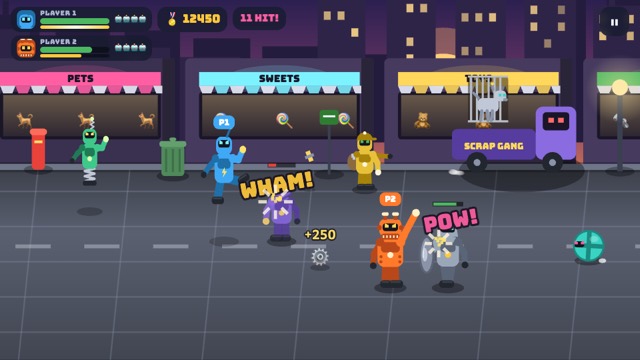
- No adverts
- No chat
- No email needed to play
- Free to play
- AGES
- 6 to 10
- PLAYERS
- 1 player, or 2 players together on one keyboard
- CONTROLS
- Touch: slide a thumb anywhere on the floor to walk, with big Punch, Kick, Jump, Duck and Spin buttons. Keyboard: W A S D or the arrows to walk, F punch, G kick, H jump, R duck, T spin, P pause.
- BEST ON
- A computer with a keyboard, which two players need. A tablet works well for one player with the on-screen buttons.
- HOW LONG
- A street takes roughly two to four minutes; the Endless Junkyard goes on until the spare robots run out.
What is it?
The Scrap Gang has taken Sparky the robot dog. Your child picks a robot and walks across town after them, side-on, fighting robot baddies on the way. Each street stops at a few gates where a group of baddies walks in, and a boss waits at the end.
Everyone in the game is a robot, and there is no blood: a beaten robot lies still for a moment, then falls to bits. Players can also pick up a spanner or a plank to swing, or a crate to throw.
Every hit is followed by a short safe moment, and Easy gives four spare robots. The first time a new baddie, hazard or boss turns up, a card shows how to beat it and reads the tip aloud.
What’s in it
- Five streets, each with its own boss: Main Street, Toy Factory, Rooftops, The Arcade and The Junkyard.
- The Endless Junkyard, with waves of baddies and a boss every fifth wave, opens after the first street.
- Four robots to play: Chip and Rusty from the start, then Zippy and Tank, earned with stars.
- Two players can team up on one keyboard, each with their own health and lives.
- Bosses flash a red warning before each big move, and often tire afterwards: the moment to hit back.
How to play
- Pick a robot, choose Easy or Tough, press Let's rumble and pick a street.
- Walk along the street. When the hazard tape goes up, knock out every baddie.
- Punch three times for an uppercut, or kick to send baddies further. Jump and kick to fly.
- Hold Duck to let punches and bolts fly over you, and press Spin when its button pulses.
- Follow the GO arrow to the next gate, and beat the boss at the end.
What children practise
- Watching for a warning, then timing a dodge or a jump.
- Choosing the right move for each baddie, such as kicking a shield away.
- Working as a team when two players share the keyboard.
For grown-ups
- Cartoon fighting: robots punch, kick and throw each other, and can swing a spanner or plank.
- No blood and no people: a beaten robot lies still for a moment, then falls to bits.
- Little reading needed: baddie tips are read aloud, and the touch buttons carry pictures.
- Easy gives four spare robots and extra health; Tough gives three, and baddies hit harder.
Across Kid Cartridge: no adverts, no chat, no email needed to play, free to play. Guests play without signing up. About Kid Cartridge. Privacy.
Questions grown-ups ask
Is it too violent for young children?
It is slapstick robot fighting with comic WHAM and POW words. There are no people and no blood: a beaten robot simply falls to bits. If you are unsure, watch the first street together.
Can two children play together?
Yes, on a computer. Set Players to 2P on the title screen. Player one uses W A S D with F G H R T; player two uses the arrow keys with comma, full stop, slash, L and M. On a tablet the touch buttons control one robot only.
Is it too hard for a five-year-old?
Easy mode is built to be forgiving, with spare robots, extra health and a safe moment after each hit. The later streets and bosses ask for more dodging and timing, so younger children may want a hand with those.
If they like Tin Can Heroes
Grown-ups: get it on the tablet
Send Tin Can Heroes to your child’s tablet
On the tablet, open kidcartridge.com/robot-rumble/.
Put it on the Home Screen
It then opens full screen, like an app. On iPhone and iPad, Safari can clear a guest’s saves if they go unplayed for a while, and a Home Screen icon is kept apart from that. The icon starts with its own saves, so add it before the first game if you can.
iPad and iPhone (Safari)
- Open kidcartridge.com in Safari.
- Tap Share . On iPad it’s at the top. On iPhone it’s at the bottom; on newer iPhones, tap ••• first.
- Scroll down and tap Add to Home Screen. On newer iPads and iPhones you may need to tap View More first.
- If you see Open as Web App, leave it on. Tap Add.
- Open the games from the new icon from now on.
Android (Chrome)
- Open kidcartridge.com in Chrome.
- Tap the menu at the top right.
- Tap Add to Home screen. It may say Install app.
- Tap Add or Install.
Chromebook or laptop
- Open kidcartridge.com in Chrome or Edge.
- Look for an install icon at the right-hand end of the address bar, and click it.
- No icon? Bookmark the page instead.
Share this page with another parent
kidcartridge.com/games/tin-can-heroes/
Free printables, and news
All the games · Games guide · About · For grown-ups · Privacy · Terms